Most small organizations need both backups: a local backup for fast everyday recovery and a cloud backup that survives fire, theft and ransomware. Cloud wins on disaster survival; local wins on restore speed and long-run cost at high data volumes.
A practical comparison of cloud, local and hybrid backup for small organizations, with cost, recovery speed, ransomware resilience and clear decision rules by budget.
By Editorial teamPublished Last updated 11 min read
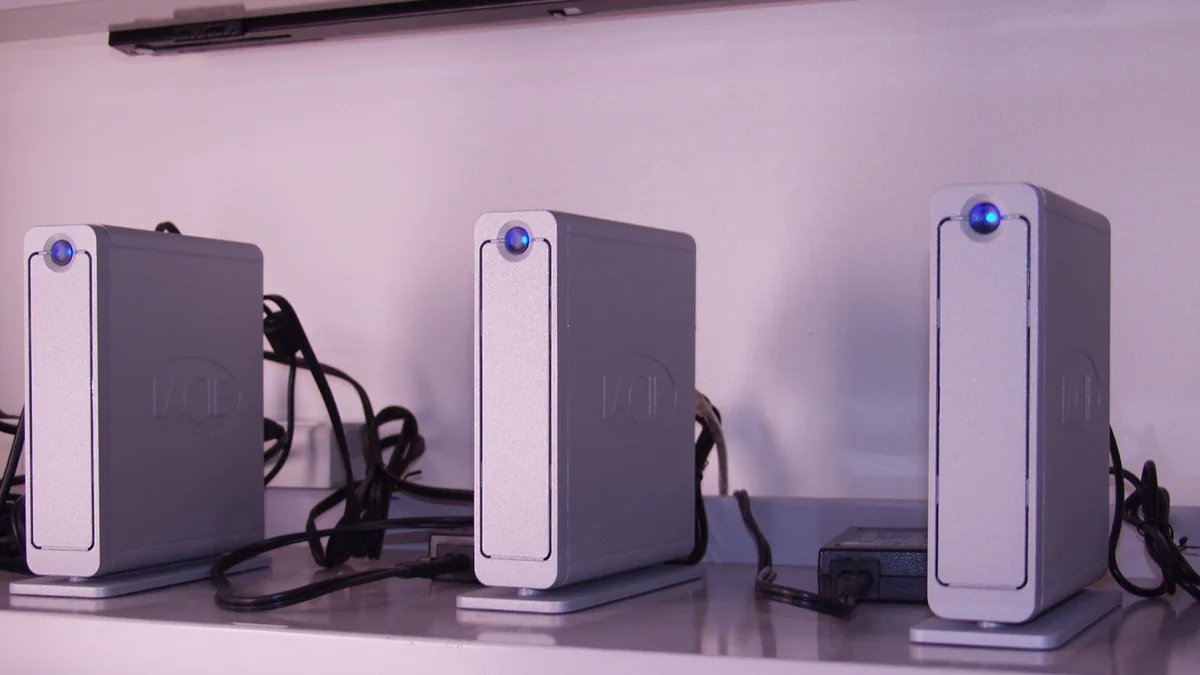
Three LaCie firewire drives used for server backups are on a shelf, each with a blue indicator light Photo: cogdogblog, Wikimedia Commons, CC0.
What backup strategy does a small organization actually need?
Most small organizations need a hybrid setup: an automated local backup for fast everyday recovery, plus a cloud backup for disasters that destroy or lock down the office. Choosing only one leaves a predictable gap: local-only backups die with the building, while cloud-only backups fail you the day you need to restore 500 GB over a slow connection. The real decision is how much of each you need, which depends on your data volume, budget and how quickly you must be back up and running.
What do cloud and local backup each protect against?#
A backup strategy is a list of failure scenarios you are willing to pay to survive. A local backup, meaning a copy on a device you control such as an external drive, NAS or office backup server, covers hardware failure with fast restores. A cloud backup, meaning a copy stored at a provider over the internet, survives fire, flood, theft and ransomware that destroys the office. No single backup type covers every scenario.
Local backup copies your data to a device you control: an external drive, a network-attached storage (NAS) box, or a backup server in your office. It is fast to write to and fast to restore from, because traffic never leaves your local network.
Cloud backup copies your data to a provider’s storage over the internet. It survives anything that happens to your physical office: fire, flood, theft, a ransomware attack that encrypts everything on site, or a staff member dropping the wrong file server into a skip.
Read that table honestly. The scenarios you most fear, ransomware and physical disaster, are exactly the ones where a single backup type fails. That is the mechanical reason hybrid backup exists, not vendor marketing.
Neither cloud nor local backup is automatically cheaper; it depends on how much data you have and how long you keep the equipment. Cloud backup costs scale with data volume and recur monthly, while local backup costs are mostly up front: hardware bought once, paid for again only when it fills up or dies. Cloud suits small data volumes; local pays for itself at multi-terabyte scale, if paired with an off-site copy.
| Cost factor | Cloud backup | Local backup |
|---|---|---|---|
| Upfront cost | Low (setup time only) | Medium (drives, enclosure, NAS) |
| Ongoing cost | Monthly per GB or per user | Electricity, occasional drive replacement |
| Cost of storing 1 TB for 3 years | Predictable subscription cost | One or two drive purchases |
| Cost as data grows | Grows with data | Grows in steps (new drives) |
| Hidden cost | Restore bandwidth, egress fees on some services | Staff time to manage, untested hardware |
| Upgrade path | Add storage instantly | Buy and swap hardware |
For a five-person nonprofit with a few hundred gigabytes of documents, cloud backup is often genuinely cheap, sometimes available at nonprofit-discounted rates. See our rundown of free and discounted software for nonprofits for eligible tools.
For an organization with multiple terabytes (video production, large databases, design assets), cloud costs climb every month while a local NAS stays flat. That is when local backup starts paying for itself, but only if you pair it with an off-site copy.
One cost trap deserves emphasis: “free” cloud storage included with productivity suites is not the same as backup. Synced files mirror deletions and bad edits. A real backup keeps point-in-time versions.
How fast can you restore from cloud versus local backup?#
Recovery speed is the factor everyone underestimates, and it favors local backup. A local NAS can realistically restore hundreds of gigabytes in an hour or two over your own network, while restoring 1 TB from a cloud provider on a modest business connection can take several days of continuous transfer. Uploading data to the cloud is one thing; downloading it back down after a server failure is another matter entirely.
Typical real-world constraints:
The Atola Insight Forensic is a data recovery device used for restoring data from backups Photo: YuliaSam, Wikimedia Commons, CC BY-SA 4.0.
Local restore: limited by your network and drive speed. A NAS can realistically restore hundreds of GB in an hour or two.
Cloud restore: limited by your internet download speed. On a modest business connection, restoring 1 TB can take several days of continuous transfer.
Bulk export options: some providers ship you a physical drive for large restores, which turns days into a day or two plus shipping time.
SaaS restores: individual files from Google Workspace or Microsoft 365 restore quickly, but a whole-account or whole-tenant restore is a different process entirely.
How much downtime can your organization tolerate?#
The practical rule: the more data you have, and the shorter your tolerable downtime, the more a local backup earns its place. If your operation could survive a week with file access but no full server, cloud-only may be fine. If you need staff working tomorrow morning, you need something on-site.
Ask yourself a concrete question before buying anything: “If the server died at 9 a.m. on Monday, how many hours until staff can open their files?” That number, not storage capacity, drives your architecture.
Why is ransomware the deciding factor in backup choice?#
Ransomware has pushed hybrid backup from “nice to have” to “standard practice” because modern ransomware does not just encrypt working files. It waits, then encrypts every connected storage device it can reach, including backup drives and mounted NAS shares, and it hunts for cloud sync folders, so a compromised machine can corrupt or delete synced cloud copies too. Backup strategies survive only when some copy is offline, immutable or protected by separate credentials.
Offline local backups: drives that are disconnected except during scheduled backup runs (sometimes called air-gapped rotation).
Cloud backup with version history: providers that keep prior versions of files even after the current copies are encrypted, often with retention windows of 30 days or more.
Immutable or object-lock storage: cloud storage configured so files cannot be altered or deleted for a fixed period, even by someone with your credentials.
Separate credentials: backup systems protected by accounts not shared with day-to-day staff, ideally with multi-factor authentication. If the ransomware operator has the same login for your backup console, none of the above helps.
Ransomware resilience is also why “just copy files to a USB drive that’s always plugged in” fails as a strategy. The drive gets encrypted along with everything else.
How much setup and maintenance effort does each backup type need?#
Backup systems are not install-and-forget, and effort differs by type: cloud backup tools need the least setup and light monthly checks, a USB drive needs connection discipline, a NAS needs medium setup effort, and a hybrid setup needs both. Honest effort budgeting prevents the worst outcome: a backup that quietly stopped working six months ago.
Cloud backup (consumer or small business tools): lowest setup effort. Install an agent, select folders, verify the first backup completes. Monthly maintenance: spot-check that backups are running and test one file restore.
Local backup to a USB drive: easy to start, easy to neglect. Requires manual connection discipline or scheduled rotation. Many organizations discover their “backup” was last run months before the failure.
Local backup to a NAS: medium setup effort (disk configuration, user permissions, network access), medium maintenance. Worth it once you have multiple machines or a file server.
Hybrid: highest setup effort because you run both, but each half is simpler than it looks. Many organizations set up the cloud copy once and treat the local copy as a simple scheduled job.
Whichever you choose, schedule a restore test. Pick a file, delete it, recover it. A backup you have never restored from is a hope, not a system.
How should you choose a backup approach by organization size and budget?#
Match your situation to a concrete pattern rather than defaulting to “use both.” Staff who work mainly in cloud apps face account compromise, not hardware failure, so they need cloud-to-cloud backup. An office server needs cloud backup plus a rotating local drive; multi-terabyte media collections need a NAS with offline rotation for critical subsets. The table below maps six common situations to recommended approaches.
Situation
Recommended approach
Why
1 to 5 people, all files in cloud apps
Cloud-to-cloud backup service
Primary risk is account compromise, not hardware
Under 10 people with one office server
Cloud backup plus one rotating USB drive
Covers disaster and speeds everyday restores cheaply
10 to 50 people, on-site file server
NAS with scheduled backups, plus cloud backup with version history
Local speed for routine recovery, cloud for site disasters
Large media files, multi-TB data
NAS as primary backup target, offline rotation for critical subsets
Cloud costs for full volume are prohibitive; prioritize what must survive
Tight budget, low data volume
Cloud backup alone, tested monthly
Local hardware plus maintenance time may exceed a cheap subscription
Regulated or grant-funded data
Hybrid, with documented restore tests
Funders and auditors ask for evidence, not intentions
Two nuances on this table. First, if your staff work mainly in Google Workspace or Microsoft 365, your “local backup” question is really a question of exporting critical data periodically, since there is no office server to back up locally. Our Google Workspace vs Microsoft 365 comparison covers the retention and export differences that matter for backup planning.
Burned server destroyed in the Choteau fire on 11/27, highlighting the risk of data loss without off-site backups Photo: John from USA, Wikimedia Commons, CC BY 2.0.
Second, budget-constrained organizations should prioritize by consequence, not by completeness. A nonprofit’s donor database and financial records must survive a disaster; a shared folder of old marketing photos can wait until there is budget for it.
Organizations that buy the right tools often fail in predictable ways: never testing restores, sharing backup credentials with everyday logins, setting retention windows too short, leaving the backup drive next to the server, skipping laptops, and assuming cloud provider redundancy equals a backup. None of these require technical sophistication to fix. They require a checklist and a calendar entry.
Never testing restores: the most common failure by a wide margin.
Backup credentials shared with everyday logins: ransomware operators compromise the account and delete the backups first.
Retention windows that are too short: accidental deletions discovered after 30 days are gone for good.
The USB drive sitting in a desk drawer two feet from the server: survives drive failure, dies in the same fire.
Backing up the server but not the laptops: mobile devices often hold the only copy of working files.
No backup of cloud accounts: assuming the provider’s redundancy equals a backup of your data. It does not.
Hybrid backup (local plus cloud) is the standard for a reason: each covers the failure modes the other cannot.
Cloud backup wins on disaster survival and ransomware resilience with version history; local backup wins on restore speed and long-run cost at high data volumes.
Recovery speed, not storage capacity, should drive your architecture. Decide how many hours of downtime you can tolerate.
Ransomware survives against offline drives and immutable cloud storage, not against drives that stay connected all the time.
Protect backup systems with their own credentials and multi-factor authentication, separate from daily staff logins.
Test a restore every month. An untested backup is an assumption, not a safeguard.
Choose by consequence: prioritize the data whose loss would end operations, and let the rest wait for budget.
Cloud backup is safer against physical disasters, theft and ransomware that encrypts local drives, because copies live off-site. Local backup is safer against account compromise, internet outages and slow restore times. Most small organizations are best protected by a hybrid setup that pairs both.
How much should a small organization spend on backup?
A workable rule of thumb is 1 to 3 percent of your technology budget for the backup tooling itself, plus staff time for setup and monthly testing. Cloud backup for a small team often costs roughly the same as a few business software subscriptions per person.
What is the 3-2-1 backup rule?
The 3-2-1 rule means keeping three copies of your data, on two different types of media, with one copy stored off-site. It is the standard starting point because it covers both equipment failure and site-level disasters like fire or ransomware.
Do I need backup if I already use Google Workspace or Microsoft 365?
Yes. Those platforms protect against failures on their side, but they do not automatically protect against deleted files, compromised accounts or staff mistakes after retention windows pass. A third-party backup adds a separate recovery path when the primary account is unusable.
Practical sustainability moves for small offices: extend hardware life, right-size cloud usage, buy greener, and dispose of e-waste responsibly, ranked by effort and impact.